
Action Reference
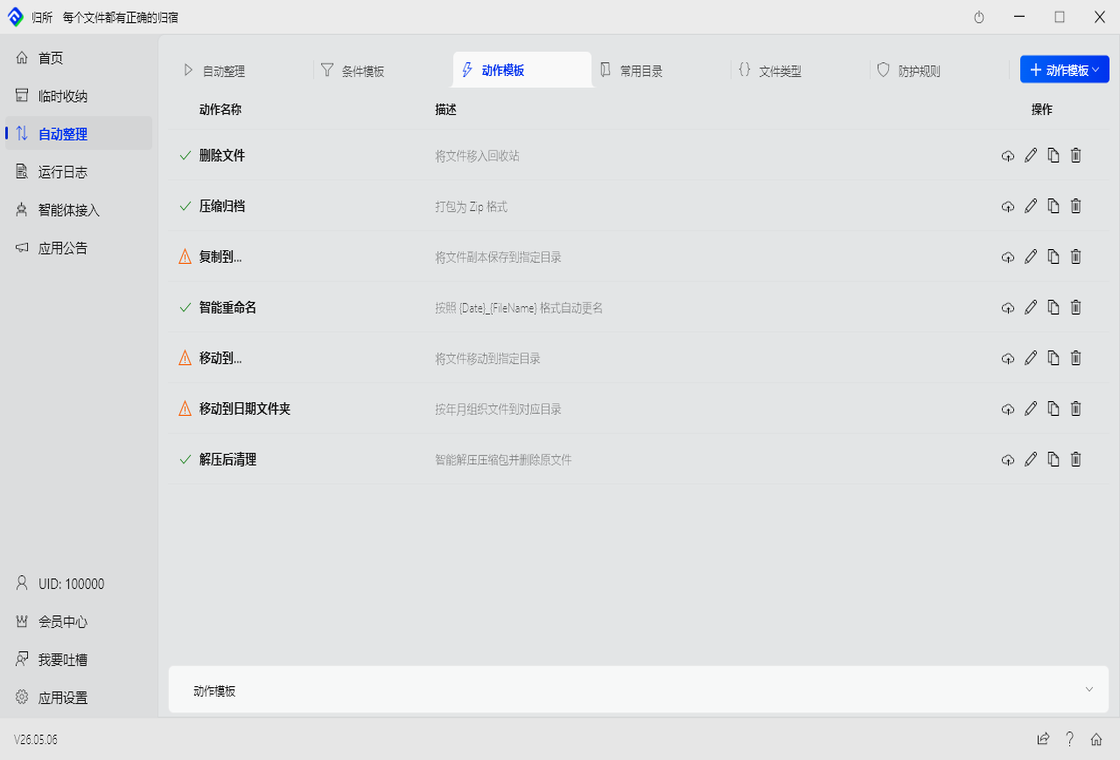
Actions are what FinalPlace does to matched files: move, copy, rename, delete…
9 Action Types
Section titled “9 Action Types”1. Move
Section titled “1. Move”Move the file to a specified folder. Supports auto-creating subfolders by date (e.g., archive/{YYYY}/{MM}/), so files naturally organize by time. Can also create subfolders by file type.
Destination: D:/Documents/20242. Copy
Section titled “2. Copy”Copy the file to the destination while keeping the original in place. Great for “keep a backup in another location while organizing the original” scenarios.
3. Rename
Section titled “3. Rename”Rename files automatically using templates. Common patterns: {Date}_{FileName} (date prefix), {Seq}_{FileName} (sequence prefix), {Ext}_{FileName} (type prefix).
| Template | Original Name | Result |
|---|---|---|
{Date}_{FileName} | report.pdf | 2024-03-15_report.pdf |
[Done]_{FileName} | draft.docx | [Done]_draft.docx |
{FileName}_{timestamp} | photo.jpg | photo_1700000000.jpg |
4. Extract
Section titled “4. Extract”Automatically extract archives into a folder with the same name. Original archive can be kept or moved after extraction. Great for download folders full of zip/rar/7z files.
Downloads/archive.zip → Downloads/archive/ (extracted contents)5. Compress
Section titled “5. Compress”Package multiple files into a zip archive. Great for periodic archiving — e.g., “compress all project files every Friday” — saves space and makes files easy to share.
Destination: D:/Backup/reportsCreates: D:/Backup/reports.zip6. Create Directory
Section titled “6. Create Directory”Automatically create folder structures. Use with Move to “create the destination folder and move into it at the same time.” Examples: by date 2024/07/, by client name, by project code.
D:/archive/{Year}/{Month}Creates: D:/archive/2024/03/7. Delete
Section titled “7. Delete”Move files to Recycle Bin (not permanent delete). Read-only attributes are automatically stripped before deletion to ensure clean removal. Great for clearing old installers and unwanted duplicates from the Downloads folder.
8. Clean Directory
Section titled “8. Clean Directory”Clean empty folders, or remove files older than a specified number of days. Great for regular maintenance — e.g., “clean empty folders older than 7 days every morning” or “remove unused temp files older than 30 days every week.”
9. Modify Attributes
Section titled “9. Modify Attributes”Batch-change file attributes: read-only, hidden, archive… Use with other actions — e.g., strip read-only before moving, or lock down organized files by setting them as read-only.
Action Chains: Multiple Actions in Sequence
Section titled “Action Chains: Multiple Actions in Sequence”Multiple actions execute in order, forming an “action chain”:
Step 1: Modify attributes (strip read-only, original file may be read-only)Step 2: Move to D:/archive/2024Step 3: Clean directory (remove empty subfolders in source)Short-circuit rule: If any action fails, subsequent actions do not execute.
Handling Conflicts
Section titled “Handling Conflicts”If a file with the same name already exists in the destination:
| Strategy | Effect | Recommended? |
|---|---|---|
| Rename (default) | File becomes report (1).pdf, report (2).pdf | ⭐⭐⭐ Safest |
| Skip | Don’t overwrite, don’t move — file stays in place | ⭐⭐ Conservative |
| Overwrite | Replace the old file | ⭐ Use with caution |
The default is “Rename” — no files are ever lost.
Cross-Drive Move Safety (Safe-Move)
Section titled “Cross-Drive Move Safety (Safe-Move)”When moving a file from C: to D: (or vice versa), FinalPlace does this:
- Copy the complete file to the destination first
- Verify the copied file matches the original in size/content
- Only then delete the original
The benefit: even if power goes out or the system crashes mid-transfer, the destination already has a complete copy. No data loss.
Rename Template Variables
Section titled “Rename Template Variables”Use these variables when creating folders or renaming files:
| Variable | Meaning | Example Output |
|---|---|---|
{FileName} | Original file name (no extension) | report |
{FileExt} | File extension | pdf |
{Date} | Date | 2024-03-15 |
{Time} | Time | 14-30-00 |
{Year} | Year | 2024 |
{Month} | Month | 03 |
{Day} | Day | 15 |
{timestamp} | Unix timestamp (seconds) | 1700000000 |
{random} | Random 4-digit number | 7392 |
{counter} | Incrementing number | 001, 002 |