
Watchdog & Safety
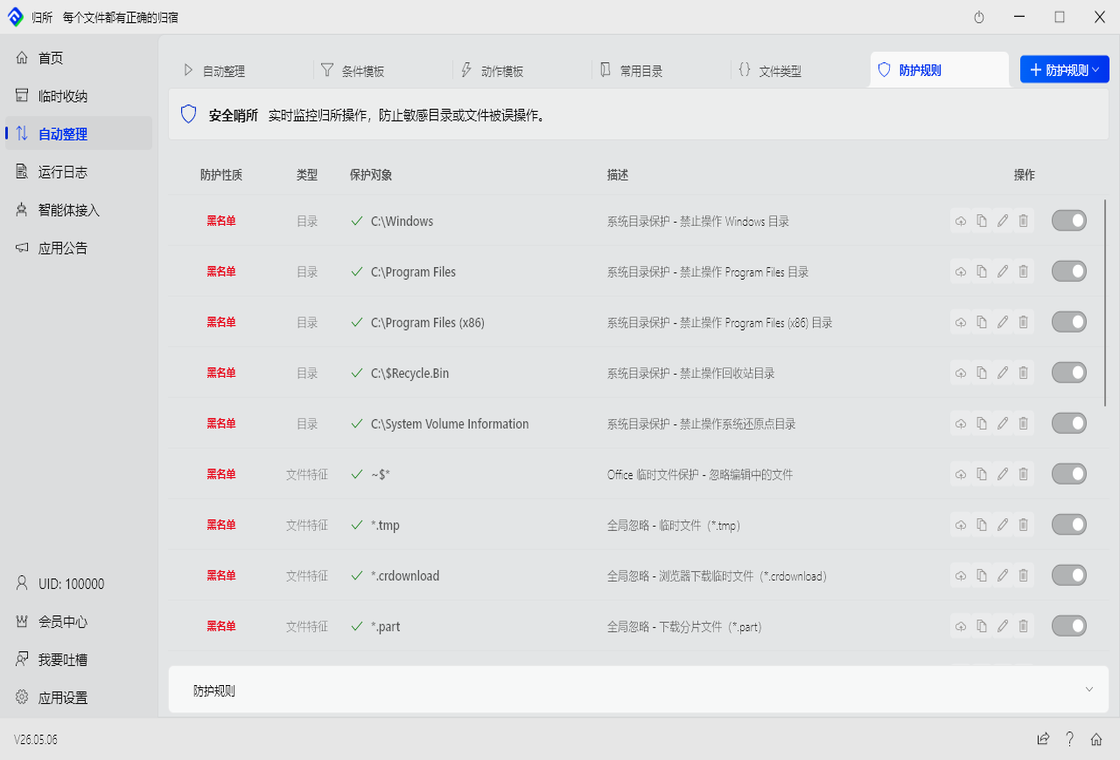
FinalPlace monitors folders you specify, but never touches critical system files. This article explains FinalPlace’s safety mechanisms.
Scope: You Decide
Section titled “Scope: You Decide”Each rule specifies which folders to monitor independently.
FinalPlace does not auto-monitor your entire computer — only the directories you explicitly tell it to watch.
You can monitor:
C:\Users\YourName\Desktop ✓ Your desktopC:\Users\YourName\Downloads ✓ Downloads folderD:\Work ✓ Your own foldersThe Watchdog: Two Layers of Protection
Section titled “The Watchdog: Two Layers of Protection”FinalPlace has a built-in “watchdog” — automatic protection you never need to configure.
Layer 1: Dangerous Extension Protection
Section titled “Layer 1: Dangerous Extension Protection”Executable and system config files like exe, dll, and sys are blocked only when they are in system directories. These files in your normal user directories are unaffected and can be processed by rules normally.
Layer 2: System Directory Protection
Section titled “Layer 2: System Directory Protection”FinalPlace automatically protects these directories from all rules:
| Directory | Description |
|---|---|
C:\Windows | Windows system directory |
C:\Program Files | Program installation directory |
AppData directory | FinalPlace’s own data directory |
No Infinite Loops
Section titled “No Infinite Loops”FinalPlace has anti-loop protection. This won’t happen:
Desktop rule: PDF → Documents folderDocuments rule: All files → DesktopResult: File bounces back and forth...Anti-loop mechanisms:
- If a file is already in a rule’s destination folder, FinalPlace won’t move it again
- The same file won’t be processed twice by the same rule within 5 seconds
Office Temp Files Are Skipped Automatically
Section titled “Office Temp Files Are Skipped Automatically”Word and Excel create temporary files starting with ~$ while a document is open.
FinalPlace automatically ignores these files — it will never move or delete a file that’s currently open in Office.
What If a File Is In Use?
Section titled “What If a File Is In Use?”When a file is being used by another program, FinalPlace:
- Skips it and waits for the program to release it
- Retries later, up to 3 attempts
- Records the failure and tells you which file couldn’t be processed
Where Is Your Data?
Section titled “Where Is Your Data?”All FinalPlace configuration files and logs stay on your computer — nothing is uploaded:
C:\Users\<YourName>\AppData\Local\FinalPlace\AppData is a hidden Windows system folder. FinalPlace’s own data lives here, and your rules never touch this directory.
Summary: What FinalPlace Won’t Do
Section titled “Summary: What FinalPlace Won’t Do”| FinalPlace won’t… | Explanation |
|---|---|
| Touch system files | Blocked in system directories only, normal user directories unaffected |
| Touch Windows directories | C:\Windows is absolutely safe |
| Touch AppData | FinalPlace’s own data is excluded from rules |
| Permanently delete | Defaults to Recycle Bin, never direct delete |
| Upload your files | Everything runs locally, nothing goes to the cloud |
| Process open files | Files open in Office are left untouched |