
FinalPlace & AI Integration Guide
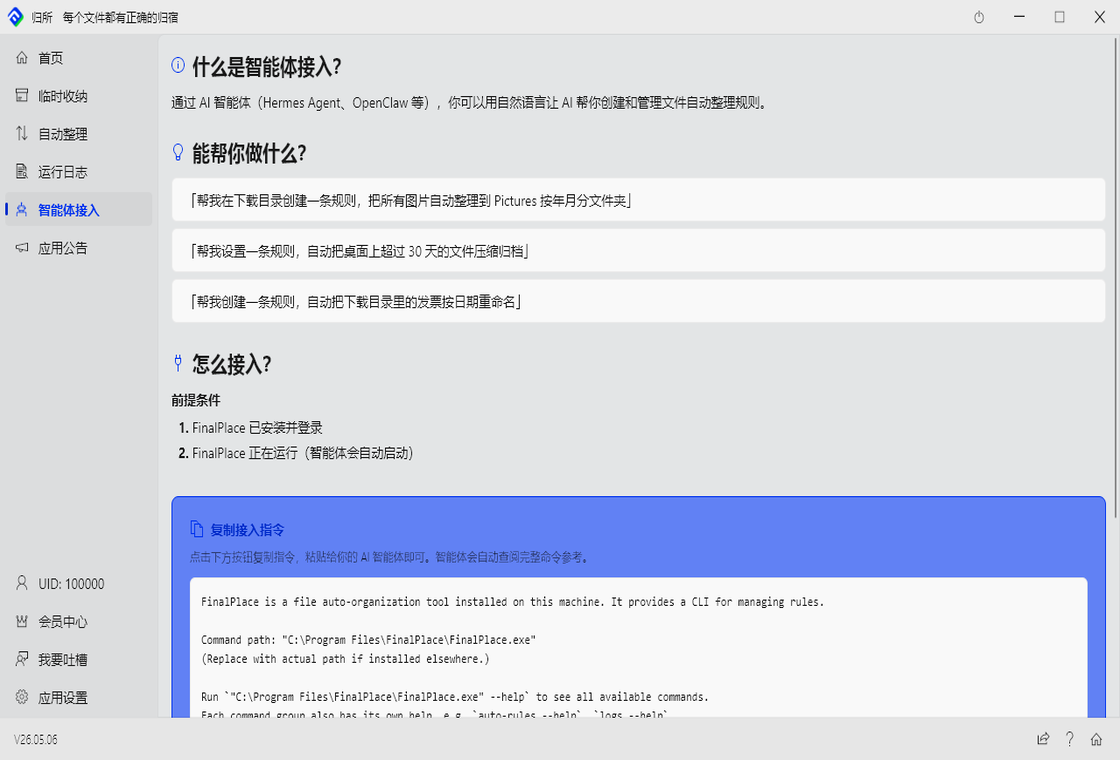
FinalPlace provides a CLI (Command-Line Interface) that lets AI agents manage file organization rules directly through terminal commands.
How It Works
Section titled “How It Works”AI Agent → finalplace.exe CLI → IPC (Socket) → FinalPlace GUI → Execute OperationThe CLI doesn’t work independently. It communicates with a running FinalPlace GUI instance via local socket. AI sends commands, FinalPlace executes — all data stays local.
Prerequisites
Section titled “Prerequisites”- FinalPlace is installed and logged in
- FinalPlace GUI is running (agents can use
launchto start it automatically)
How to Connect
Section titled “How to Connect”Configure Command Path
Section titled “Configure Command Path”FinalPlace does not register itself in the system PATH after installation. AI agents must use the full path:
"C:\Program Files\FinalPlace\FinalPlace.exe"Verify Connection
Section titled “Verify Connection”# Check if CLI is available"C:\Program Files\FinalPlace\FinalPlace.exe" --help
# Start GUI (if not running)"C:\Program Files\FinalPlace\FinalPlace.exe" launchQuick Start
Section titled “Quick Start”1. Start GUI
Section titled “1. Start GUI”finalplace.exe launchIf the GUI is not running, it will start automatically and wait until ready (up to 30 seconds).
2. List Existing Rules
Section titled “2. List Existing Rules”finalplace.exe auto-rules listfinalplace.exe auto-rules list --enabled # enabled rules only3. Create a Rule
Section titled “3. Create a Rule”finalplace.exe auto-rules create ^ --name "Organize Images" ^ --source "C:/Downloads" ^ --condition "ext:jpg,png,gif" ^ --action "move:C:/Pictures/{Year}/{Month}" ^ --enable4. Preview (dry-run, no changes made)
Section titled “4. Preview (dry-run, no changes made)”finalplace.exe auto-rules preview --uuid <UUID> --path "C:/Downloads/photo.jpg"5. Execute a Rule
Section titled “5. Execute a Rule”finalplace.exe auto-rules execute --uuid <UUID> --path "C:/Downloads/photo.jpg" --confirmWhat AI Can Do
Section titled “What AI Can Do”| Category | Command | Description |
|---|---|---|
| Rules | auto-rules list | View existing organization rules |
auto-rules create | Have AI create rules for you | |
auto-rules update / delete | Modify or delete rules | |
auto-rules toggle | Enable or disable a rule | |
| Watchdog | watchdog list | View system protection rules |
watchdog create | Have AI create protection rules | |
| Templates | condition-templates list | View condition templates |
action-templates list | View action templates | |
| Logs | logs list | View historical organization records |
logs rollback | Roll back a task’s operations |
Safety Mechanisms
Section titled “Safety Mechanisms”Concretely:
- AI says “I’ll organize these files” → FinalPlace pauses and waits for your “Confirm”
- You see what AI plans to do → confirm if OK, cancel if not
deleteandexecuteoperations require--confirmflag to prevent accidents
Permission Restrictions
Section titled “Permission Restrictions”When calling auto-rules execute, you can set safety limits:
| Restriction | Description |
|---|---|
allow_overwrite | Allow overwriting same-named files |
allow_cross_volume | Allow moving across drives |
allow_destructive | Allow delete operations |
allow_permanent_delete | Allow permanent deletion (no Recycle Bin) |
Recommendation: When first using AI, disable all of these — only allow “move to specified directory.”
Runs Locally — No File Upload
Section titled “Runs Locally — No File Upload”Output Format
Section titled “Output Format”All commands output JSON:
// Success{"ok": true, "data": {...}}
// Error{"ok": false, "error": {"code": "ERROR_CODE", "message": "Description"}}
Exit codes: 0 = success, 1 = failure.