
Batch Moving Files: 10x Efficiency in File Organization
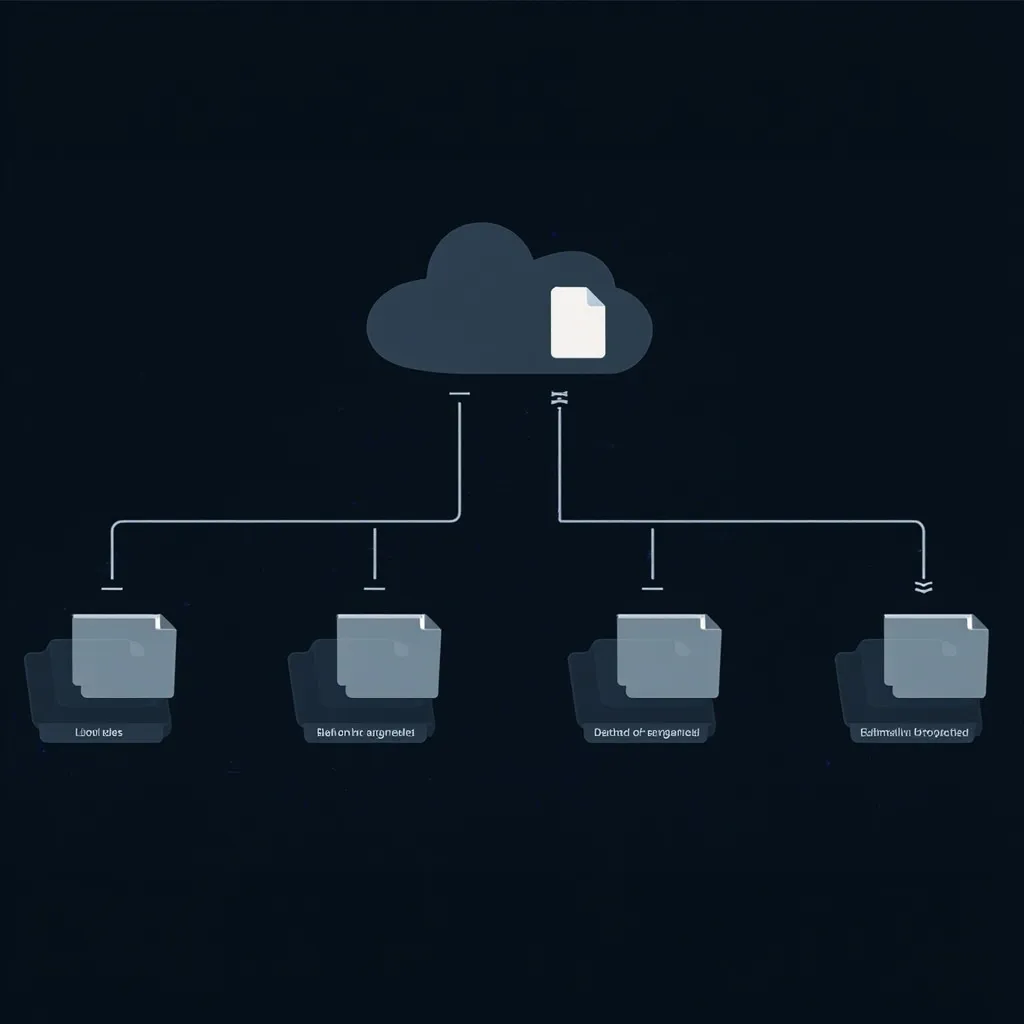
When organizing files, what takes the most time?
It’s not deciding where each file should go — that thinking takes maybe a few seconds.
The real time sink is: open destination folder → select files → drag → return → open next folder → select → drag……
Repeat 50 times. Keep track of what’s done. Stay focused. Don’t drag the wrong file.
That’s what batch moving solves.
What Is Batch Moving?
Section titled “What Is Batch Moving?”Batch moving is exactly what it sounds like: multiple files routed simultaneously to their respective destinations according to rules.
Not dragging one by one — one routing rule that sends all files to where they belong.
Example: Your Downloads folder has 30 files that need routing to 5 different directories:
- 12 images →
D:\Archive\Images\2026Q1\ - 8 PDFs →
D:\Archive\Docs\Contracts\ - 6 Word files →
D:\Archive\Docs\Proposals\ - 3 zip files →
D:\Archive\Backups\ - 1 Excel →
D:\Finance\2026Q1\
Manual: Open 5 folders, drag 5 times, eyes on task to avoid mistakes.
Rules engine: Set rules → Execute once → All files in place.
When Do You Most Need Batch Moving?
Section titled “When Do You Most Need Batch Moving?”Scenario 1: Periodic Downloads folder cleanup
Clean your Downloads folder once a week. Dozens to hundreds of files accumulated: images, documents, installers, archives — all mixed together, needing to be sorted by type.
With rules engine: {Downloads}{images} → D:\Archive\Images\{year}\{month}. Each cleanup = one rule trigger. All files auto-route.
Scenario 2: Post-project document archiving
When a project closes, all project files need to move from a temp directory to an archive directory, organized by project name and date.
Manual = open directories, select, move, confirm, repeat. Rules engine = set structure once, execute once, done.
Scenario 3: Team file routing
Designer sends completed assets to a shared directory. You need to route them to the team knowledge base organized by project → year → type.
Batch moving rule: {SharedDir}{file} → D:\KnowledgeBase\{Project}\{Year}\{Type}. New files arrive and auto-route without supervision.
Two Core Elements of Batch Moving
Section titled “Two Core Elements of Batch Moving”① Rules must be comprehensive
Finer rule coverage = more accurate routing. Common rule dimensions:
- File type (image/document/audio/video)
- Source channel (WeChat/email/browser download)
- Keywords (filename contains specific text)
② Destination structure must be stable
If the directory structure your rules point to keeps changing, your rules keep breaking.
Design your directory structure before setting rules: use variables like {year}, {month} — avoid hardcoded paths so rules stay valid long-term.
What Actually Changes
Section titled “What Actually Changes”After using batch moving rules, the consistent feedback is: “I didn’t realize file organization could be this fast.”
Before: 20–30 minutes to clean the Downloads folder. After: Under 1 minute.
The operation didn’t get faster. You stopped being the one doing the repeated dragging.
You define rules. The system executes. That’s what file management automation looks like.
Related articles:
- Batch File Renaming: 20 Minutes of Manual Work, Now 1 Minute
- Programmer File Management: Beyond Code