
How to Auto-Organize Video Footage - Sort Before Editing
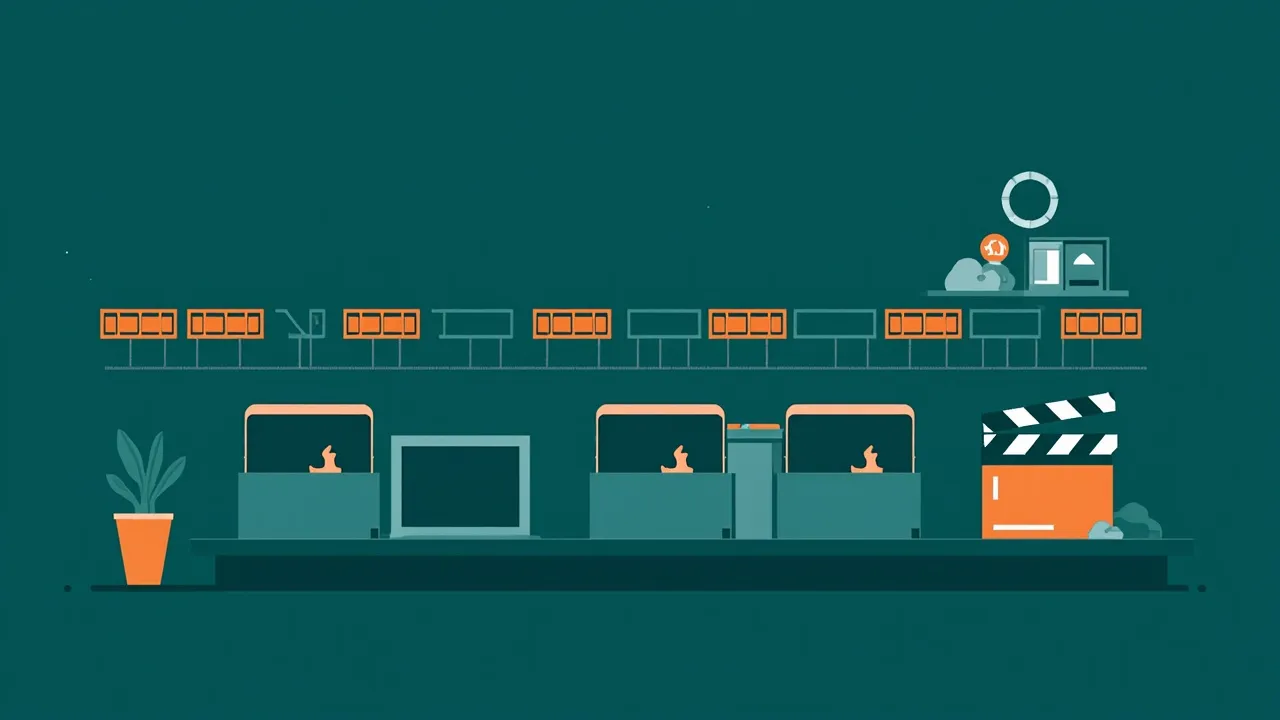
Video Footage from Different Projects Mixed in One Folder
Section titled “Video Footage from Different Projects Mixed in One Folder”Video editors know the dread of an unsorted footage folder. After a day of shooting, footage gets dumped from cameras, drones, and phones into a single directory. MP4 files from a DSLR, MOV clips from a cinema camera, and proxy files from a media server all pile together with cryptic filenames like C0001.mp4, A002.mov, and DJI_0043.mp4. When you sit down to edit, you face a wall of hundreds of clips with no organization.
The sorting ritual is painful and repetitive. You manually scrub through clips, figure out which project they belong to, create folders, and drag files one batch at a time. This pre-editing organization can eat 30 minutes or more every single session — time that should go to creative editing, color grading, or sound design. And if you skip the sorting, your editing software’s timeline becomes a disorganized mess of clips from different shoots mixed together.
The problem scales with your workload. A freelancer juggling three client projects faces overlapping footage from each. A wedding videographer with multiple camera angles needs clips separated by ceremony, reception, and prep. Manual sorting simply cannot keep up with the volume of footage that modern video work generates.
Footage Auto-Sorted by Project Before You Start Editing
Section titled “Footage Auto-Sorted by Project Before You Start Editing”FinalPlace auto-sorts footage by project the moment it arrives. Set rules to watch your footage inbox folder and route MP4, MOV, MXF, and other video formats to project-specific folders based on filename keywords or date. Footage from “ClientA” goes to the ClientA project folder automatically — no manual dragging required.
Multi-format handling keeps your editing workflow clean. Whether you work with MP4 proxies, MOV originals, or RAW video formats, FinalPlace can route each format to its own subfolder. Proxies go to a Proxy folder for smooth editing, while high-resolution originals go to an Archive folder for final renders. Your editing software imports from a clean, predictable structure every time.
The 3-second safety delay protects large video files. Video clips can be several gigabytes each. FinalPlace waits for each file to finish writing before moving it, and the Watchdog safety engine ensures no file is touched mid-transfer. Your footage arrives intact, every time.
Set Up Video Footage Auto-Sorting in Three Steps
Section titled “Set Up Video Footage Auto-Sorting in Three Steps”-
Set up project-based routing rules. In FinalPlace, choose your footage import folder as the monitored directory. Add video file extensions (MP4, MOV, MXF, AVI) and define destination folders for each project using filename keywords — for example, files containing “ClientA” move to
~/Video/Projects/ClientA/Footage/. -
Create format-specific sub-rules if needed. If you separate proxies from originals, add rules to route MP4 proxy files to a Proxy folder and MOV or MXF originals to an Archive folder. This keeps your editing pipeline clean from the start.
-
Import a test batch and verify the sorting. Copy a set of video clips with different filenames into your watched folder. Within seconds, FinalPlace will sort them into the correct project and format folders. Confirm the results, then leave the rules running for every future footage import.
Try it first, all features available in the free trial.
Related Reading:
- How to Auto Sort RAW Files Before Lightroom Import
- How to Organize Screenshots by Project Automatically
Download FinalPlace | How to Auto Organize Downloaded Fonts and Icons | How to Organize Screenshots by Project Automatically