
How to Auto-Organize WeChat Files: 3 Steps to Auto-Sort
Before leaving work each day, do you habitually check your WeChat file folder?
If so, you’ve probably seen that massive FileStorage directory. Every file WeChat receives — contracts from colleagues, shared materials from group chats, product images from clients — all pile up under C:\Users\YourUsername\Documents\WeChat Files\YourWeChatID\FileStorage\. Files are split into subdirectories by File (documents), Image (pictures), and Video (videos). It looks like they’re categorized, but each subdirectory contains thousands of files with names that are gibberish and date strings.
Looking for a contract PDF from last week? You’d have to scroll through hundreds of files in the File directory by modification date. Looking for a product image a client sent? The files in the Image directory are all named like mmexport1719000001234.jpg — impossible to tell which is which.
What’s worse: group chat files and private chat files are mixed together, and files from Project A are mixed with files from Project B. WeChat’s built-in file management only lets you browse by chat history, not by file type or project. And those files you haven’t opened within 72 hours? WeChat automatically cleans them up — by the time you remember to look for them, they’ve already expired.
There’s also an easily overlooked issue: FileStorage is stored on the C drive by default. Over time, dozens of GB of files silently consume your system disk space, making your computer increasingly sluggish.
Comparison of Three WeChat File Management Solutions
Section titled “Comparison of Three WeChat File Management Solutions”| Manual Sorting | Search Tools (Everything/Listary) | FinalPlace | |
|---|---|---|---|
| Auto-categorize | ❌ All manual drag-and-drop | ❌ Search only, no organizing | ✅ Auto-sort by rules |
| Rename by type/date/keyword | ❌ Right-click rename one by one | ❌ Not supported | ✅ Flexible naming rules |
| Auto-process after setup | ❌ Manual every time | ❌ Manual search every time | ✅ Set once, runs continuously |
| Learning curve | Low, but time-consuming | Low | Low, templates ready to use |
| No file loss | ✅ | ✅ | ✅ Safe-Move protocol protection |
Everything and Listary are excellent search tools, but their core capability is “searching,” not “organizing.” Search tools can help you find a file — provided you remember the filename or roughly know its contents. Given WeChat’s file naming conventions, it’s nearly impossible to guess content from a filename.
What you really need is: to have the file automatically placed in the right location the moment it arrives. That’s exactly what FinalPlace does.
Three Steps to Auto-Organize WeChat Files
Section titled “Three Steps to Auto-Organize WeChat Files”Step 1: Download and Install FinalPlace
Section titled “Step 1: Download and Install FinalPlace”Visit the FinalPlace website to download and install. The installer is under 20MB, runs entirely locally, requires no internet connection, and needs no account registration.
Step 2: Create WeChat File Organization Rules
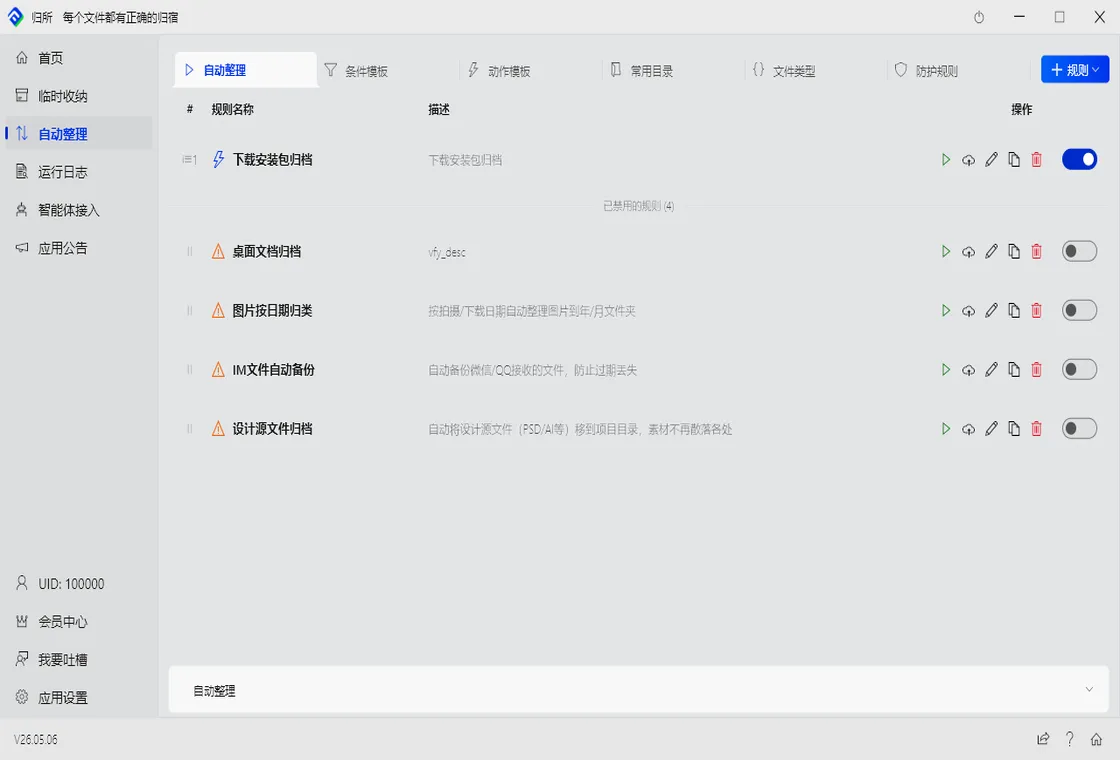
Section titled “Step 2: Create WeChat File Organization Rules”Open FinalPlace and click “New Rule.” The key to WeChat files is: under the FileStorage directory, files are stored in File, Image, and Video categories, but the naming is chaotic. We use file extensions as conditions to move them into our own categorized directories.
Rule 1: Document Files
- Watch Directory:
C:\Users\YourUsername\Documents\WeChat Files\YourWeChatID\FileStorage\File - Condition: Extension =
.pdf,.docx,.xlsx,.pptx - Action: Move to
D:\Documents\WeChat Files\
Rule 2: Image Files
- Watch Directory:
...\FileStorage\Image - Condition: Extension =
.jpg,.png - Action: Move to
D:\Pictures\WeChat Images\
Rule 3: Video Files
- Watch Directory:
...\FileStorage\Video - Condition: Extension =
.mp4 - Action: Move to
D:\Videos\WeChat Videos\
Three rules cover the three major categories of WeChat received files. You can refine further — for example, move PDFs containing the keyword “contract” to a dedicated “Contracts” folder, or move files containing “invoice” to a “Reimbursement” folder.
Step 3: Click Run or Set Up Scheduled Trigger
Section titled “Step 3: Click Run or Set Up Scheduled Trigger”Once rules are created, there are two ways to use them:
- Manual Run: Click the “Run” button, and FinalPlace immediately scans the FileStorage directory, moving all matching files to their designated locations in one pass
- Scheduled Trigger: Set it to “run every hour” or “auto-run on file change” — whenever you receive a new file, FinalPlace automatically moves it to the corresponding directory
Scheduled trigger is recommended. This way, the moment WeChat receives a file, FinalPlace organizes it for you. When you open your WeChat file folder, you’ll no longer see gibberish filenames — instead, you’ll see neatly organized directories sorted by type.
Real Scenario: A Day in the Life of Marketing Specialist Lin
Section titled “Real Scenario: A Day in the Life of Marketing Specialist Lin”Lin works in a company’s marketing department and handles a large volume of WeChat group messages every day. Colleagues share industry report PDFs in the company group, designers send banner assets in the design group, and clients send product photos and video references in the client group.
Previously, she had to manually clean up her WeChat file folder every few days — dragging important files to a temporary folder on the desktop, then slowly categorizing them. If she forgot to clean up, the FileStorage directory would pile up to thousands of files. Finding a product image a client sent last week meant digging through the Image directory for ages.
After setting up FinalPlace rules, WeChat documents automatically go into the “WeChat Files” folder, images automatically go into “WeChat Images,” and videos automatically go into “WeChat Videos.” Lin simply opens the corresponding folder, sorts by modification date, and the files received that day are clear at a glance.
“It used to take 10 minutes to find a WeChat file. Now it takes 30 seconds,” Lin says.
Who Especially Needs WeChat File Auto-Organization
Section titled “Who Especially Needs WeChat File Auto-Organization”Social Media Managers: Receive industry news, event posters, and partner materials across dozens of WeChat groups daily. File types are mixed, sources are many, and manual sorting can’t keep up. Use FinalPlace to auto-categorize by type — no more digging through the FileStorage directory.
Sales / BD: Contracts, quotes, and product spec sheets from clients are all in WeChat. Auto-archive using keyword rules — PDFs containing “contract” go to “Client Contracts,” Excel files containing “quote” go to “Quotes.” Monthly reconciliation becomes a breeze.
Admin / HR: Employee onboarding documents, reimbursement vouchers, and notice files are often sent via WeChat. Set rules to route these files to corresponding folders automatically — never worry about expired files again.
Teachers: Student assignments, teaching materials, and activity photos from parent group chats all pile up in FileStorage. Use FinalPlace to auto-sort by extension — images go to images, documents go to documents. End-of-semester organization is no longer a scramble.
Want to learn more? Explore FinalPlace features
Have questions? Visit the Help Center or contact service@yynote.cn
Related Reading:
- How to Auto-Organize QQ Received Files
- How to Auto-Organize WeCom Files
- How to Auto-Organize DingTalk Files
- How to Auto-Organize Feishu (Lark) Files
“How to Auto-Organize Files from XX” Series: This article covers WeChat. Upcoming articles will cover QQ, WeCom, DingTalk, and Feishu (Lark) — stay tuned.