
How to Auto-Organize DingTalk Files: Sort Attachments Fast
Anyone who works with DingTalk knows that the number of files received each day is substantial — Excel reports shared by colleagues in group chats, attachments from approval workflows, announcement PDFs pushed by department heads… After DingTalk downloads these files locally, they’re stored by default under the C:\Users\YourUsername\Documents\DingTalk\ directory.
It seems like files are in one fixed location, but there are actually quite a few problems. Chat files, approval attachments, and Drive cache each land in different subdirectories with inconsistent paths. Clock-in screenshots, daily report templates, weekly Excel reports, and formal approval attachments are mixed at the same directory level, making it impossible to distinguish priorities. What’s worse, if you’re part of multiple DingTalk organizations (e.g., the group headquarters and a subsidiary each have their own setup), the directory splits into multiple layers by organizational structure, scattering files even further.
Looking for an approval attachment from last week? You first need to recall whether it was sent via chat or pushed through an approval workflow, then search through different subdirectories. The filename might even be a mix of an approval serial number and a timestamp — completely uninformative.
Over time, the DingTalk directory becomes a black hole — you know the files are in there somewhere, but you don’t know exactly where, and you’re not sure which ones are important or safe to delete.
Comparison of Three DingTalk File Management Solutions
Section titled “Comparison of Three DingTalk File Management Solutions”| Manual Sorting | Search Tools (Everything/Listary) | FinalPlace | |
|---|---|---|---|
| Auto-categorize | ❌ All manual drag-and-drop | ❌ Search only, no organizing | ✅ Auto-sort by rules |
| Sort by filename keyword/extension | ❌ Judge each file individually | ❌ Not supported | ✅ Auto-route approval, report types |
| Auto-process after setup | ❌ Manual every time | ❌ Manual search every time | ✅ Set once, runs continuously |
| Learning curve | Low, but time-consuming | Low | Low, templates ready to use |
| No file loss | ✅ | ✅ | ✅ Safe-Move protocol protection |
Everything and Listary excel at “searching,” but searching requires you to remember the filename or keywords. DingTalk files are often named with approval numbers or timestamps, making filename-based searching highly inefficient.
What you really need isn’t after-the-fact searching, but automatic categorization the moment a file arrives — approval attachments go to the approval archive, reports go to the report folder, documents go to the document directory. That’s exactly what FinalPlace does.
Three Steps to Auto-Organize DingTalk Files
Section titled “Three Steps to Auto-Organize DingTalk Files”Step 1: Download and Install FinalPlace
Section titled “Step 1: Download and Install FinalPlace”Visit the FinalPlace website to download and install. The installer is under 20MB, runs entirely locally, requires no internet registration, and is ready to use after installation.
Step 2: Create DingTalk File Organization Rules
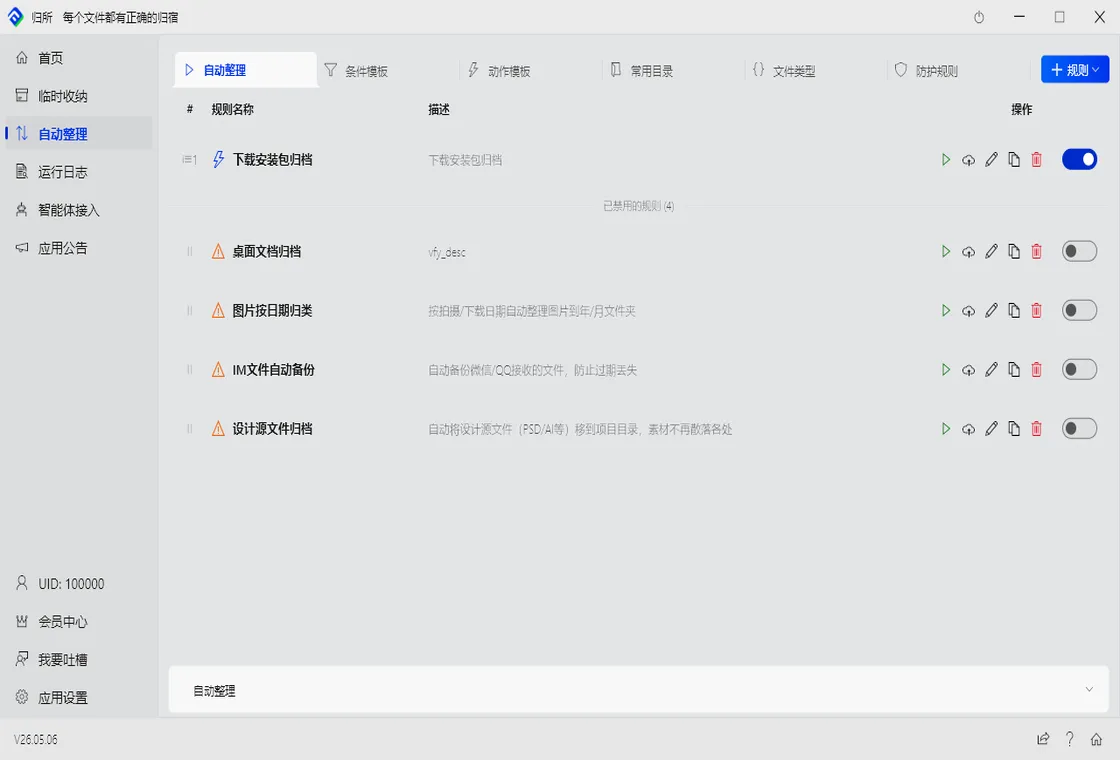
Section titled “Step 2: Create DingTalk File Organization Rules”Open FinalPlace and click “New Rule.” The key to organizing DingTalk files is: files from different sources have different naming characteristics. Using filename keywords + extensions as conditions, you can precisely route them to their respective archive directories.
Rule 1: Approval Attachments
- Watch Directory:
C:\Users\YourUsername\Documents\DingTalk\ - Condition: Filename contains “approval” or “form”
- Action: Move to
D:\Approval Archive\DingTalk Approvals\
Rule 2: Reports
- Watch Directory: Same as above
- Condition: Extension =
.xlsx,.xls,.csv - Action: Move to
D:\Reports\DingTalk Reports\
Rule 3: Documents
- Watch Directory: Same as above
- Condition: Extension =
.pdf,.docx,.doc,.pptx - Action: Move to
D:\Documents\DingTalk Files\
These three rules cover the three most common categories of DingTalk received files. You can refine further — for example, move PDFs with “contract” in the filename to a dedicated “Contracts” folder, or move documents containing “notice” or “announcement” to an “Announcements” directory. FinalPlace supports creating multiple rules simultaneously — they don’t interfere with each other, each managing its own scope.
Step 3: Click Run or Set Up Scheduled Trigger
Section titled “Step 3: Click Run or Set Up Scheduled Trigger”Once rules are created, there are two ways to use them:
- Manual Run: Click the “Run” button, and FinalPlace immediately scans the DingTalk directory, moving all matching files to their designated locations in one pass
- Scheduled Trigger: Set it to “run every hour” or “auto-run on file change” — whenever you receive a new file through DingTalk, FinalPlace automatically moves it to the corresponding directory
Scheduled trigger is recommended. This way, the moment DingTalk receives a file, FinalPlace organizes it. Next time you need an approval attachment, just open the “Approval Archive” folder; to review reports, open “DingTalk Reports” — no more searching through the DingTalk directory like finding a needle in a haystack.
Real Scenario: A Day in the Life of Admin Specialist Zhou
Section titled “Real Scenario: A Day in the Life of Admin Specialist Zhou”Zhou works in the administrative department of a mid-sized company, and DingTalk is a tool she uses frequently every day. The company’s approval workflows — leave requests, expense reimbursements, seal usage applications, procurement approvals — all run through DingTalk. Each completed approval generates corresponding attachments (leave reason screenshots, reimbursement invoice photos, procurement list Excel files) that download to the DingTalk directory.
On top of that, the department head pushes a daily report template Excel in the group every day, the finance department sends a monthly budget execution PDF, and HR sends onboarding notices and employee handbook documents… By the end of a day, the DingTalk directory can accumulate twenty or thirty new files of mixed types from different sources.
Previously, Zhou manually cleaned up every two or three days: opening the DingTalk directory, checking each filename to determine its content, then dragging it to the appropriate folder. During peak reimbursement season at month-end, sorting approval attachments alone took half an hour.
After setting up FinalPlace rules, approval attachments automatically go to “DingTalk Approvals,” daily and monthly reports automatically go to “DingTalk Reports,” and various documents automatically go to “DingTalk Files.” Zhou simply opens the corresponding folder and sorts by date — the day’s received files are clear at a glance.
“I used to dig through three subdirectories for approval attachments. Now opening one folder is enough,” Zhou says.
Who Needs DingTalk File Auto-Organization Most
Section titled “Who Needs DingTalk File Auto-Organization Most”Administrative Staff: Handle large volumes of DingTalk approval attachments daily — leave forms, reimbursement vouchers, seal usage requests, procurement approvals. These files have mixed types and hard-to-read serial number names. Use FinalPlace to auto-archive by keywords — finding files during month-end reconciliation and quarterly audits is a snap.
Operations Staff: Frequently receive data reports, event proposals, and competitive analysis documents in DingTalk groups. Report-type files auto-sort to the report directory by extension, proposal-type documents auto-route to corresponding project folders by keyword — no more digging through chat history.
Project Managers: Files from project groups, attachments from approval workflows, materials pushed by schedules — multiple sources mixed together. Set rules so files from different sources each go where they belong, saving time and effort when organizing archive materials at project closeout.
Remote Workers: DingTalk is the primary collaboration tool for many remote teams, and file volume is even larger than in the office. Use FinalPlace to auto-organize and save time on manual file management — focus your energy on actual work.
Want to learn more? Explore FinalPlace features
Have questions? Visit the Help Center or contact service@yynote.cn
FinalPlace: 3 months $10, 1 year $28 (recommended), 3 years $58 (was $84, limited-time 31% off), lifetime buyout $88. Configure once, run automatically long-term — every DingTalk file finds its place.