
How to Auto-Organize WeCom Files: Keep Work Files Tidy
WeCom (Enterprise WeChat) is a primary communication tool at work, but have you ever noticed where its received files are stored?
By default, WeCom stores all received files in a fixed path: C:\Users\YourUsername\Documents\WXWork\Data\UserID\Global\Files\. This directory is buried deep — most people have no idea it exists. But it’s this single folder that silently fills up with the work files you receive every day: contracts, reports, design drafts, training materials…
As time goes on, problems arise.
Four Major Pain Points of WeCom File Management
Section titled “Four Major Pain Points of WeCom File Management”First, files you’re afraid to delete. WeCom files aren’t as easy to trace back as chat history. Once you clear the cache or switch devices, previously received files might be gone for good. So everyone chooses “don’t delete” — and the folder keeps growing.
Second, files from different projects and clients are mixed together. Client A’s contract, Project B’s weekly report, Department C’s training materials — all dumped into the same Files directory with their original filenames from whoever sent them. Finding a specific file relies entirely on memory and search.
Third, compliance requires retention. Many industries have retention requirements for contracts, invoices, and approval documents. Files scattered across WeCom’s cache directory are neither easy to archive nor audit-ready when the time comes.
Fourth, consuming C drive space. WeCom files are stored in the system disk’s Documents directory by default. After a few months, several GB accumulates effortlessly. The C drive turns red, the system slows down, but manual cleanup risks deleting important files.
Comparison of Three File Organization Solutions
Section titled “Comparison of Three File Organization Solutions”| Manual Sorting | Everything / Listary Search | FinalPlace | |
|---|---|---|---|
| Auto-categorize | ❌ Manual drag every time | ❌ Search only, no organizing | ✅ Auto-move to target folders by rules |
| Route by filename keywords | ❌ | ❌ | ✅ Auto-sort files containing “contract,” “report,” etc. |
| Filter by extension | ❌ | ❌ | ✅ Precise matching for .pdf .docx .xlsx |
| Operation mode | Manual | Manual search | ✅ Manual run / Scheduled auto-run |
| Learning curve | Low | Medium | Low, rule config is ready to use |
| File safety | ✅ | ✅ | ✅ Safe-Move protocol, move equals protection |
Search tools (like Everything and Listary) are indeed fast at finding files, but they only solve the “finding” problem, not the “organizing” problem. Files still sit in the original cache directory, and you’ll have to search again next time. True organization means files automatically go to the correct archive location the moment they arrive.
Three Steps to Auto-Organize WeCom Files
Section titled “Three Steps to Auto-Organize WeCom Files”Step 1: Download and Install FinalPlace
Section titled “Step 1: Download and Install FinalPlace”Download and install from the FinalPlace website. The installer is under 20MB, runs entirely locally, with no internet connection and no file uploads.
Step 2: Create WeCom File Organization Rules
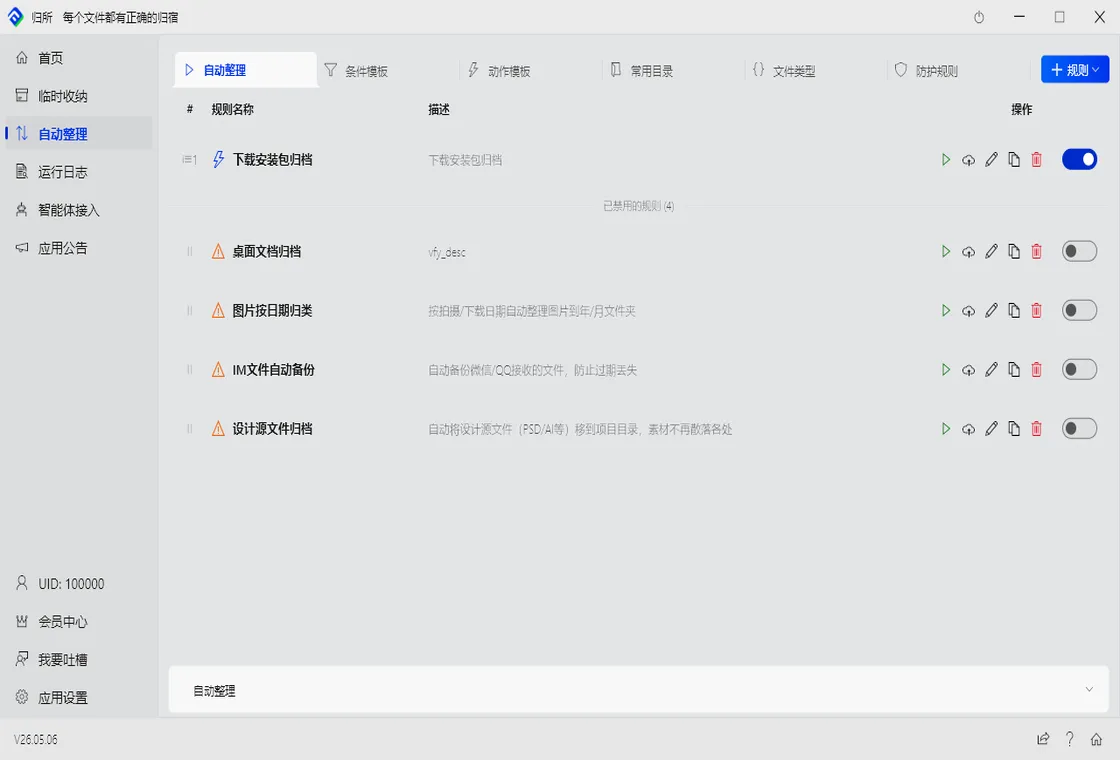
Section titled “Step 2: Create WeCom File Organization Rules”Open FinalPlace and create a new rule. Set the Watch Directory to WeCom’s file receiving path:
C:\Users\YourUsername\Documents\WXWork\Data\UserID\Global\Files\
Tip: Open WeCom → Settings → File Management to confirm your actual file storage path. If you’ve changed the storage location, use the new path.
Then configure sorting rules based on your actual work needs. Here are some common examples:
Contract Files — Condition: Extension = .pdf .docx, filename contains “contract,” “agreement,” or “signing” → Move to D:\Work Archive\Contracts\
Report Files — Condition: Extension = .xlsx .csv, filename contains “monthly report,” “weekly report,” “statement,” or “data” → Move to D:\Work Archive\Reports\
Image Assets — Condition: Extension = .jpg .png, filename contains “design” or “rendering” → Move to D:\Work Archive\Assets\
You can freely combine conditions and target paths for your own work scenarios. Configure once, and the rules remain effective long-term.
Step 3: Run the Rules
Section titled “Step 3: Run the Rules”Once configured, click “Run” to organize everything immediately. If you want ongoing automatic maintenance, set up a scheduled trigger — for example, auto-run every morning at 9 AM to sort all of yesterday’s received files into place.
From then on, you just open the corresponding archive folder to find your files — no more digging through WeCom’s cache directory.
Real Scenario: HR Processing Hundreds of Onboarding Documents Monthly
Section titled “Real Scenario: HR Processing Hundreds of Onboarding Documents Monthly”Wang is an HR specialist at a company. During onboarding season, WeCom receives a constant stream of files: ID card scans, education certificates, employment contracts, medical exam reports, bank account information… These files come from different candidates, all mixed together with a variety of filenames.
Previously, she spent an entire afternoon each month manually categorizing and filing these documents into folders for each candidate. When there were many candidates, things sometimes got mixed up.
After using FinalPlace, she created two rules: files containing a candidate’s name are sorted by extension into three subfolders — “ID Documents,” “Contracts,” and “Other.” Now FinalPlace runs automatically each morning, and she just opens the archive directory to find everything neatly organized.
From an entire afternoon to 5 minutes — that’s the transformation automatic organization brings.
Who Is It For?
Section titled “Who Is It For?”HR / Admin: Receive large volumes of onboarding documents, approval files, and notices daily. Auto-sort by filename keywords and extensions — no more manual dragging one by one.
Project Managers: Requirement docs, contract attachments, and meeting minutes from clients — with multiple projects running in parallel, files get mixed up. Auto-route by project keywords so each project’s files stay in their own place.
Finance: Invoices, reimbursement receipts, bank confirmations, and tax reports. Compliance requires long-term retention — FinalPlace auto-archives by file type into a standardized directory structure, ready for retrieval during audits.
Sales: Qualification documents, quotes, and purchase orders from clients. Auto-organize by client name or file type for quick access during follow-ups — no more scrolling through chat history.
Want to learn more? Explore FinalPlace features
Have questions? Visit the Help Center or contact service@yynote.cn
FinalPlace: 3 months $10, 1 year $28 (recommended), 3 years $58 (was $84, limited-time 31% off), lifetime buyout $88. Configure once, run automatically long-term — every WeCom file finds its place.