
How to Auto-Sort Invoices and Receipts - Never Lose One
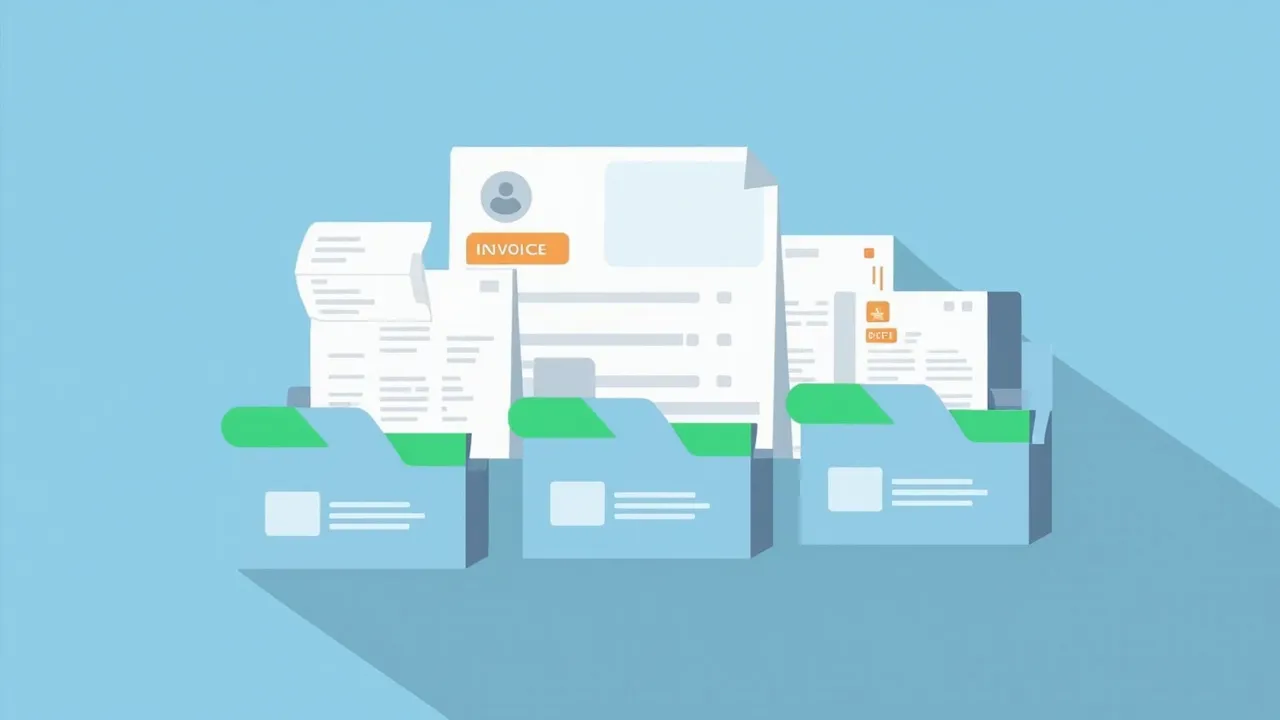
Invoice PDFs Scattered Across Downloads, Desktop and Email
Section titled “Invoice PDFs Scattered Across Downloads, Desktop and Email”Invoices and receipts arrive from every direction — email attachments, vendor portals, payment confirmations, and the occasional scanned paper receipt. Each one gets saved to wherever your browser defaults, usually the Downloads folder or the Desktop. At the time, saving the file feels sufficient. You will organize it later, you tell yourself.
But “later” rarely comes. When the end of the quarter arrives and you need to compile expenses for reimbursement or tax filing, you discover that your invoices are scattered across at least three different folders with no consistent naming. Some are named invoice.pdf, others receipt_4827.pdf, and a few are just a string of numbers. You spend hours hunting through files, opening PDFs one by one to check the vendor and amount, and inevitably one or two receipts are missing entirely.
This is a problem that repeats every single reporting cycle. The manual sorting is tedious, error-prone, and stressful — especially when deadlines are looming. What you need is a system that captures every invoice the moment it is downloaded and files it in the right place automatically, so that when reporting time comes, everything is already organized and ready.
Invoices Auto-Archived by Month, Never Lost Again
Section titled “Invoices Auto-Archived by Month, Never Lost Again”FinalPlace monitors your Downloads folder and automatically moves invoice PDFs to a dedicated archive as soon as they arrive. You define which keywords or file types to watch for — such as files containing “invoice” or “receipt” in the name — and FinalPlace takes care of filing them instantly.
Invoices can be sorted into monthly subfolders automatically, so your expense records stay perfectly organized by period. When it is time to submit a reimbursement request or prepare a tax summary, you simply open the relevant month folder and every invoice is right there, in chronological order.
FinalPlace runs continuously, meaning no invoice ever slips through the cracks — even the ones you download in a hurry and immediately forget about. The moment a receipt hits your Downloads folder, it is moved to the correct archive location within seconds.
Set Up Invoice Auto-Archiving in Three Steps
Section titled “Set Up Invoice Auto-Archiving in Three Steps”-
Select your Downloads folder as the monitored location. Create a new rule in FinalPlace and choose the Downloads folder (or wherever you save invoice attachments). This is the folder FinalPlace will watch for incoming invoice files.
-
Set conditions to identify invoices. Add a filename keyword condition matching terms like “invoice” or “receipt,” and optionally set the file type to PDF. Then configure the “Move” action to send matching files to an archive path structured by month, such as Invoices \ 2026-06.
-
Save the rule and test with a sample file. Download or copy a sample invoice PDF into your Downloads folder. Within about 3 seconds, FinalPlace should move it to the correct monthly archive folder. Once confirmed, the rule runs automatically in the background for all future invoices.
Try it first, all features available in the free trial.
Related Reading:
- How to Organize Downloads Folder Automatically on Windows
- Auto-Sort Files by Extension - Set Once, Works Forever
Download FinalPlace | How to Auto Archive Files | How to Auto Organize Music Files by Format