
How to Auto-Organize Feishu (Lark) Files Effortlessly
Your Feishu File Cache Directory Is More Chaotic Than You Think
Section titled “Your Feishu File Cache Directory Is More Chaotic Than You Think”More and more people use Feishu (Lark) for work, but you may not know that Feishu has a cache directory on your local computer — typically under C:\Users\YourUsername\AppData\Local\Lark\SDK\. Files you receive, documents you export, and images you download in Feishu are often first cached to this directory.
Open it up and take a look — what do you see? Meeting recording .mp4 files, .pdf contracts from colleagues, exported .xlsx data sheets, various .jpg and .png screenshots… all mixed together, with filenames that are incomprehensible strings of random characters or timestamps. After using Feishu for a while, this directory can accumulate hundreds of files.
The first pain point is confusion between cloud documents and local cache. Feishu’s cloud documents are stored on servers, but the files you export, attachments you download, and files you receive are scattered across the local cache directory. You think the files are in the cloud, but they’ve already been downloaded to some local corner — while the cloud-stored versions may have already expired.
The second pain point is enormous meeting recording file sizes. Feishu meeting recordings typically start at several hundred MB. After a few meetings, several GB of video files pile up in the cache directory — wasting space and difficult to manage. You want to find a meeting recap from last week, but you’re sifting through hundreds of files.
The third pain point is version chaos from multi-person collaboration. Colleague A sends one version of a proposal, Colleague B sends a revised version, and you export a final version yourself — all three files are named proposal.docx, differing only by (1) and (2) appended to the filename. Which one is the latest?
Manual sorting? Every time you finish a Feishu meeting or receive a new file, you’d have to manually drag files around. Files continuously flow in — organized today, messy again tomorrow.
Manual Sorting vs Search Tools vs FinalPlace
Section titled “Manual Sorting vs Search Tools vs FinalPlace”Many people have tried different approaches with varying results:
| Dimension | Manual Drag-and-Drop | Everything / Listary Search | FinalPlace Rule Engine |
|---|---|---|---|
| Auto-categorize | ❌ Drag everything yourself every time | ❌ Search only, no organizing | ✅ Monitors directories, auto-sorts |
| Split by type | Manual folder creation | Not supported | Auto-sort to corresponding folders by extension |
| Distinguish by source | Not possible | Rely on filename luck | Match by filename keywords |
| Auto-process after setup | ❌ | ❌ | ✅ Continuous background monitoring |
| Learning curve | Low | Medium | Low, visual management |
| File loss risk | High (manual ops prone to accidental deletion) | Low | Low (move only, never delete) |
The key difference: search tools (Everything, Listary) solve the “find files” problem, while FinalPlace solves the “files shouldn’t be messy in the first place” problem. Searching is a reactive fix; a rule engine is proactive sorting — every time Feishu caches a file, it automatically places it in the right folder.
Three Steps to Auto-Organize Feishu Files
Section titled “Three Steps to Auto-Organize Feishu Files”Step 1: Download and Install FinalPlace
Section titled “Step 1: Download and Install FinalPlace”Go to the FinalPlace website to download the installer, then double-click to install. FinalPlace is a Windows desktop application — no internet registration required, just install and start using.
Step 2: Create Rules — Monitor the Feishu Cache Directory
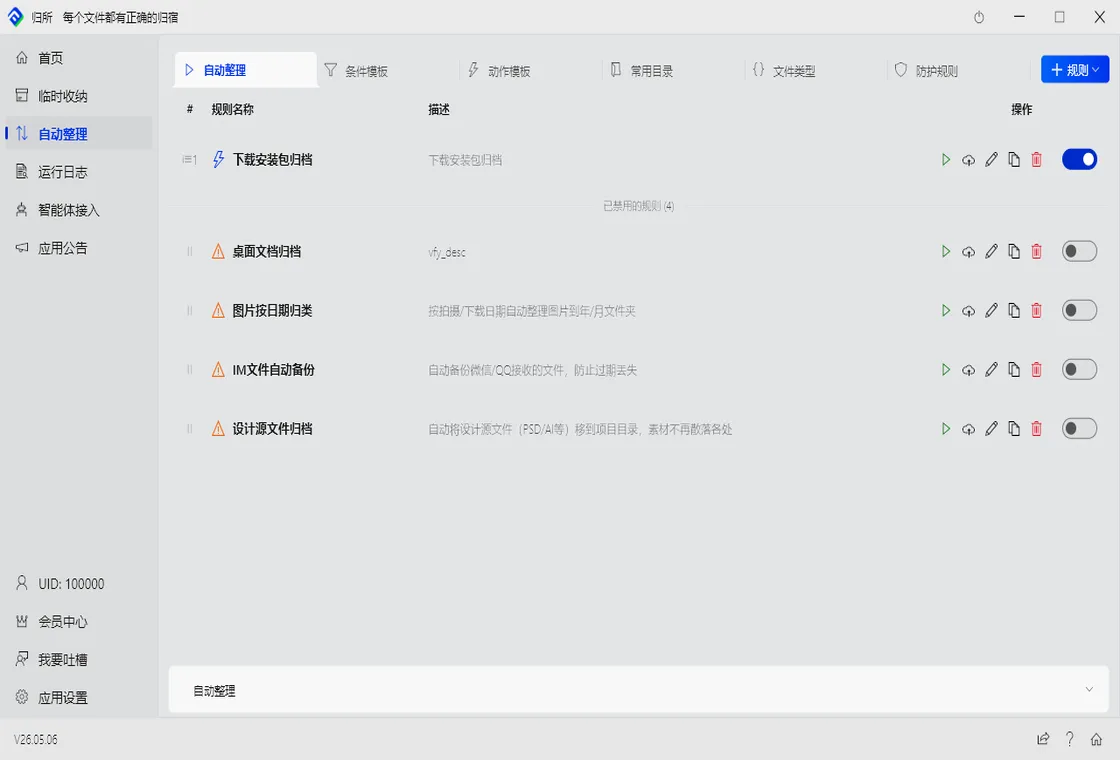
Section titled “Step 2: Create Rules — Monitor the Feishu Cache Directory”Open FinalPlace, click “New Rule,” and configure the following:
- Watch Directory: Select your Feishu cache path, i.e.,
C:\Users\YourUsername\AppData\Local\Lark\SDK\ - Match Conditions and Actions:
- Meeting recordings:
.mp4 .mov→ Move toD:\My Files\Meeting Recordings\ - Document exports:
.pdf .docx .xlsx .pptx→ Move toD:\My Files\Feishu Documents\ - Image files:
.jpg .png .gif→ Move toD:\My Files\Images\Feishu\ - Archives:
.zip .rar .7z→ Move toD:\My Files\Feishu Archives\
- Meeting recordings:
You can flexibly adjust sorting rules based on your actual needs. For example, files with names containing “weekly report” can auto-route to a weekly reports folder, and files containing “contract” can go to a legal folder — combining extension and keyword matching covers all scenarios.
Step 3: Click Run or Set Up Scheduled Trigger
Section titled “Step 3: Click Run or Set Up Scheduled Trigger”Click “Run,” and FinalPlace will immediately scan the Feishu cache directory, sorting all existing files into place according to your rules. You can also enable scheduled triggers to have FinalPlace auto-scan every few hours, or set it to start on boot — that way, whenever Feishu receives a new file, FinalPlace automatically files it away without you lifting a finger.
Real Scenario: A Product Manager’s Feishu File Pileup Nightmare
Section titled “Real Scenario: A Product Manager’s Feishu File Pileup Nightmare”Zhou is a product manager, and Feishu is the tool she uses most frequently every day. She attends at least 5 meetings per week, and each meeting’s recording is a several-hundred-MB .mp4 file piling up in the cache directory — taking up several GB. Add to that the requirement documents, wireframes, and data reports colleagues send in Feishu groups, plus the various .pdf and .xlsx files she exports herself, and the cache directory quickly exceeds 300 files.
Once, her boss asked her to find the recording of a product review meeting from last month. She searched Feishu’s cloud space but couldn’t find it (it had expired), then went to dig through the local cache directory — facing hundreds of messily named .mp4 files, it took half an hour to locate the right one. Similar situations occurred every few weeks.
After using FinalPlace, Zhou set up one rule: all .mp4 files in the Feishu cache directory automatically move to D:\Meeting Recordings\, all .pdf .docx .xlsx files move to D:\Feishu Documents\, and image files go to D:\Images\Feishu\. Now when she opens the meeting recordings folder, videos are arranged chronologically; when she opens Feishu Documents, there’s a neatly organized document list. When her boss asks for a meeting recording, she can locate it in ten seconds.
Who Is It For?
Section titled “Who Is It For?”- Product Managers: Frequent Feishu meetings, large recording file sizes, plus requirement documents and wireframe exports — the cache directory often overflows. Auto-archive by type to find files without searching for ages
- Operations Staff: Receive large volumes of event assets, data reports, and promotional images in Feishu groups daily — need quick categorization and archiving for easy reuse
- Designers: Design drafts, reference images, and export files from Feishu collaboration are all mixed together — auto-sort by image type into the design resource library for a smoother workflow
- Remote Team Leads: Manage multiple Feishu project groups, receive various collaboration documents and reports daily — auto-archive by keyword to corresponding project folders, keeping team files organized
Summary
Section titled “Summary”The chaos of Feishu received files is fundamentally a “continuous inflow without sorting” problem. Manual sorting only treats the symptoms, and search tools only find without organizing. FinalPlace’s rule engine lets you set up rules once, and then every file Feishu receives and caches automatically goes where it belongs — meeting recordings to the video folder, document exports to the documents folder, images to the images folder, and important collaboration files can be further categorized by keywords.
FinalPlace pricing: 3 months $10, 1 year $28 (recommended), 3 years $58 (was $84, limited-time 31% off), lifetime buyout $88. Runs locally, files never leave your computer, privacy is fully protected.
If you’re also struggling with Feishu file clutter, give it a try: Download FinalPlace Now
Want to explore more use cases? These articles may also help:
- How to Auto-Organize WeChat Received Files
- How to Auto-Organize QQ Received Files
- How to Auto-Organize WeCom Received Files
- How to Auto-Organize DingTalk Received Files
If you have any questions, feel free to contact us: service@yynote.cn