
CRM File Auto-Archiving: Keep Client Documents, Contracts and Attachments Organized
The Sales File Problem: Client Documents Scattered Across Five Places
Section titled “The Sales File Problem: Client Documents Scattered Across Five Places”If you work in sales or customer success, these scenes will feel familiar:
- CRM exports land in your Downloads folder with names like
client_list_export_20260928.xlsx - Signed contract scans sit in WeChat File Transfer, mixed with memes
- Client requirement docs and quote confirmations exist in both email attachments and chat apps
- At month-end reconciliation, you dig through Downloads, Desktop, WeChat and email to assemble one client’s complete file set
All of this traces back to one root cause: CRM systems manage records, not files. Client documents are born scattered across channels. Manual archiving costs 15-30 minutes a day and things still slip through - and the missing contract scan always surfaces when the client asks for it.
A Better Way: Let Files Check Themselves In
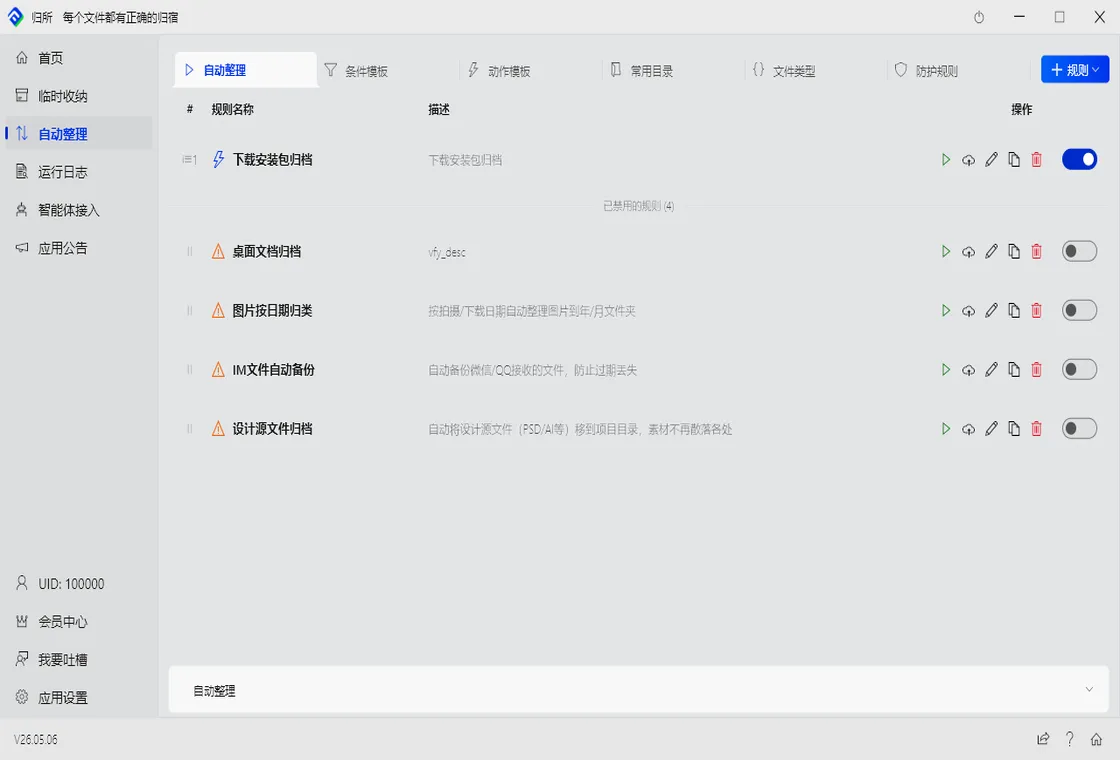
Section titled “A Better Way: Let Files Check Themselves In”FinalPlace takes a different approach: you define “which files go to which client folder,” and the rule engine handles the rest. The moment a file appears - a download completes, an attachment arrives from a chat app, an email is saved - it files itself.
The Core: Three Rules Cover 90% of Scenarios
Section titled “The Core: Three Rules Cover 90% of Scenarios”FinalPlace rules consist of conditions and actions. For the CRM file scenario, here is the recommended setup:
Rule 1: Archive contracts and documents by client name
- Condition: filename contains a client keyword (e.g. “Acme Corp”), extension is pdf / docx / xlsx
- Action: move to
D:\ClientFiles\Acme Corp\
For many clients, create one rule per key account using the “filename contains + target path” combination. FinalPlace supports filename keyword matching, so the client name can appear anywhere in the filename and still match.
Rule 2: Archive CRM exports by date
- Condition: filename starts with “client_list_export”, modified today
- Action: move to
D:\CRMExports\2026-09\, rename with a date suffix
Every export auto-archives by month with dated filenames - easy to trace back.
Rule 3: Central intake for files received via chat apps
- Condition: watch WeChat / DingTalk / WeCom receive directories for pdf / docx / xlsx / zip
- Action: move to
D:\ClientFiles\Inbox\
Each morning, spend one minute glancing at the Inbox folder and dragging files into client folders - or build rules for your high-frequency clients so even this step automates itself.
After Archiving: Auto-Compress Signed Contracts
Section titled “After Archiving: Auto-Compress Signed Contracts”For completed signings, FinalPlace’s compress action can zip the whole client folder:
- Condition: folder name contains “Signed”, no new files in 30 days
- Action: compress to
AcmeCorp_Signed_20260928.zip
The compressed archive is small and backup-friendly; the original folder can be cleaned up. The entire “signed → archived → compressed” flow runs automatically after a one-time setup.
Before and After: Manual Filing vs Rule-Engine Archiving
Section titled “Before and After: Manual Filing vs Rule-Engine Archiving”| Dimension | Manual Filing | FinalPlace Rules |
|---|---|---|
| Daily time | 15-30 min | ~1 min (glance at Inbox) |
| Miss risk | High (memory-based) | Low (rules run consistently) |
| File naming | Inconsistent, hard to trace | Auto-dated, standardized |
| Contract archiving | Manual compress & upload | Auto-packaged zip |
| Learning curve | — | 5 minutes to build a rule, visual config |
Who It’s For
Section titled “Who It’s For”- Sales / Account Executives: many clients, many contracts, fragmented sources - the daily file-hunting cost adds up quickly here
- Customer Success / Support: need instant access to per-client communication history and documents
- Channel / Partner Managers: quotes, agreements and reconciliation sheets from multiple partners, filed by channel
- Freelancers: serving multiple clients simultaneously, folder hygiene directly affects delivery efficiency
Getting Started
Section titled “Getting Started”- Download and install FinalPlace (Windows, ready out of the box)
- Spend 5 minutes building your first rule - start with “archive CRM exports by date”
- Observe for a week, then add dedicated rules for key accounts
Not sure how to configure a rule? The Getting Started guide has complete examples. Questions? Email service@yynote.cn - replies within 24 hours on business days.