
How to Archive a Folder in Windows: Batch, Compress, and Keep It Findable
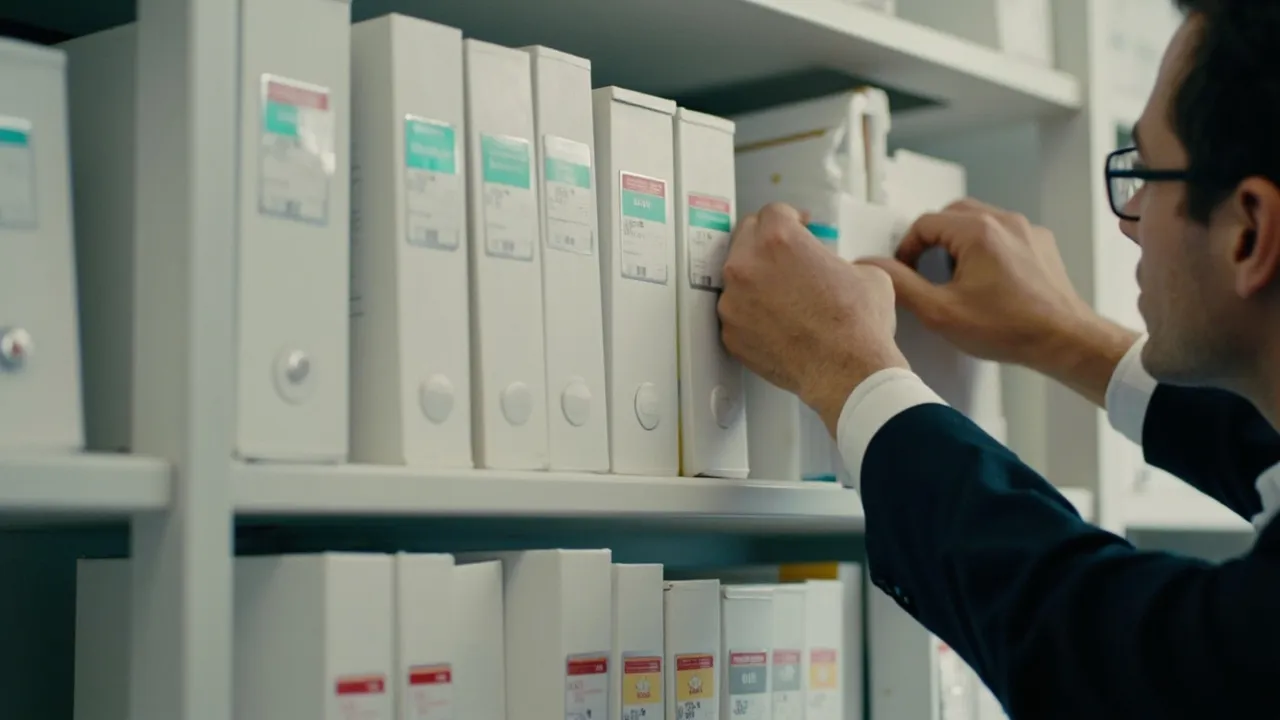
Quick answer: To archive a folder in Windows, right-click it in File Explorer, choose Send to → Compressed (zipped) folder, then move the resulting ZIP into a dedicated archive directory organized by year or project. That handles one folder. To batch archive folders at scale, turn the decision into a rule: a local rule engine like FinalPlace can watch a source folder, compress or move everything older than a threshold, and file the results into a year-based archive structure automatically — fully offline.
Why Archiving Folders by Hand Falls Apart Quickly
Section titled “Why Archiving Folders by Hand Falls Apart Quickly”The manual method itself is simple. In File Explorer you compress a folder in three steps:
- Right-click the folder and choose Send to → Compressed (zipped) folder.
- Wait for Windows to build the ZIP next to the original.
- Cut the ZIP and paste it into your archive location, then delete the source folder.
Nothing here is hard, and for a single folder it works fine. The problem is that folder archiving is never about a single folder. A work machine accumulates project folders, download dumps, export directories, and client deliverables month after month, and every one of them eventually ages into an archive candidate. Manual archiving has three recurring failure modes at that scale:
- Inconsistent naming. Each session invents its own convention —
Old_Project,project2019_final,archive2— and six months later nobody, including you, knows what is inside which ZIP. - Interrupted momentum. Compressing, moving, and deleting folders one at a time is dull work. People stop halfway through, which leaves the job in a state that is harder to resume than to restart.
- No repeatability. Next quarter the same pile returns, but nothing remembers the decisions you made last time. You re-judge every folder from scratch.
The cost is measurable. Surveys of knowledge workers consistently estimate that people spend between one and three hours per week simply locating files they already own, and an archive assembled in a hurry makes that number worse, not better, because compressed folders cannot be browsed as quickly as plain ones. Industry reports on enterprise storage routinely find that 30–50 percent of the files on a typical work computer have not been opened in over a year, which means the archive pile grows faster than anyone’s patience for right-clicking. The fix is not more discipline. The fix is converting the decision into a rule that runs without you.
How to Batch Archive Folders with a Rule Engine
Section titled “How to Batch Archive Folders with a Rule Engine”A rule engine replaces the manual loop with a standing instruction: when files in a folder you designate match a condition, apply an action. FinalPlace, a Windows file organization tool that runs completely on your machine, builds rules from eight condition types — including file age, file type, file size, and content keyword matches — and twelve actions, among them move, copy, compress, and rename. When an archive target already holds a file with the same name, four conflict-handling strategies decide what happens next, so the outcome stays predictable on every run.
Three condition-and-action combinations cover most folder-archiving needs.
1. Finished projects: compress, then move
Section titled “1. Finished projects: compress, then move”Scope a rule to your Projects directory with an age condition of 180 days. Anything untouched for half a year is compressed and moved into D:\Archive\Projects\2025\. Each finished project leaves your working area as one compact archive, and your active workspace stays short enough to scan at a glance. Because the compress action packages files before they move, you recover disk space at the same time as you declutter.
2. Year-based document archives
Section titled “2. Year-based document archives”Point a second rule at your Documents folder with an age condition of one year. Matching files flow into an Archive\2026 structure automatically, so the archive builds itself in the background instead of demanding a weekend. If you prefer calendar-driven cleanup over continuous watching, the scheduled auto-archive walkthrough shows how to run the same archiving rules at fixed times — for example, the last Friday of each quarter.
3. Content-aware archiving with keywords
Section titled “3. Content-aware archiving with keywords”Folder names are not always trustworthy guides to what is inside. The content keyword condition inspects what a file actually contains: a rule matching documents that contain the word “invoice” can copy them into a finance archive even when they are scattered across a dozen project folders. For retrieval-driven archives — everything for the accountant, everything for one client — content conditions often beat folder locations.
For a wider set of condition-and-action recipes, the file organization rules cookbook collects tested combinations, several of which pair an age condition with the compress action for exactly this batch-archive pattern. And if drafting rules by hand feels tedious, the AI agent series overview explains how an assistant can turn plain-English archiving wishes into well-formed rules, with a preview before anything on disk changes.
An Archive Folder Structure You Can Actually Navigate
Section titled “An Archive Folder Structure You Can Actually Navigate”Compression shrinks folders; structure is what keeps them findable. Three schemes cover most needs, and they combine:
- By year —
Archive\2025,Archive\2026. Suited to time-based retention such as tax records, logs, and exports. Age conditions map onto this layout directly, which makes it the natural target for automated rules. - By project or client —
Archive\Client-A,Archive\Website-Redesign. Suited to retrieval that is client-centric: you ask “everything about X,” not “everything from March.” - Hybrid —
Archive\2026\Client-A\launch-materials_2026-03. The year answers when, the nested folder answers what. Two questions, two clicks, no search required.
A few habits keep the structure honest over time. Name archives with a date suffix so sorting equals chronology. Keep one staging area outside archive scope for work that is genuinely active. And when a folder is archived, let the rule apply the same naming pattern every time — ad-hoc names are how archives rot. Surveys of office workers suggest that duplicate and obsolete files can occupy 15–30 percent of local disk space, and a flat archive with inconsistent names quietly recreates the clutter you were trying to escape.
From One-Off Cleanup to a Standing System
Section titled “From One-Off Cleanup to a Standing System”Once the rules exist, archiving stops being an event you schedule and becomes a state you maintain passively. Finished work ages out of your active folders on its own, compressed and filed where you decided months earlier. Because FinalPlace runs entirely offline, rule evaluation, compression, and file moves all happen on your machine — nothing is uploaded, and the tool works with the network cable pulled out. Licensing is equally low-friction: $10 for a three-month plan, $28 for a year, $58 for three years, or a one-time $88 for a lifetime license.
Start with one rule on one folder — the oldest project directory is a forgiving candidate — and let it run for a few weeks before adding more. Batch archiving earns trust the same way the archive itself does: consistently, one predictable run at a time.
Frequently Asked Questions
Section titled “Frequently Asked Questions”Does archiving a folder in Windows delete the original files?
Not by itself. Compressing a folder in File Explorer creates a ZIP and leaves the source untouched; deleting the original is a separate, explicit step. With a rule engine you choose the behavior per rule: a copy action leaves the source in place, while a move action relocates it. A common pattern is to run copy rules for a month to build trust in the archive, then switch the same rule to move.
Should I organize my archive folders by year or by project?
Use years when retention is time-based — tax documents, logs, exports — and projects when retrieval is client-centric. The hybrid layout, a year folder containing project subfolders, answers both questions and is easy to target with age-based rules. If the archive doubles as a compliance record, years usually win, because retention policies are written in dates.
What happens when the archive already contains a file with the same name?
FinalPlace provides four conflict-handling strategies, so a name collision never produces a coin-flip outcome. You decide in advance how collisions resolve, and the rule applies that choice consistently on every run — which matters most in batch archiving, where dozens of files move in a single pass.
Does batch archiving with FinalPlace need an internet connection?
No. FinalPlace runs fully local: condition checks, compression, and file moves all happen on your machine with nothing uploaded to any cloud service. Rules keep working offline, which also makes them a reasonable fit for machines that handle sensitive files by policy.